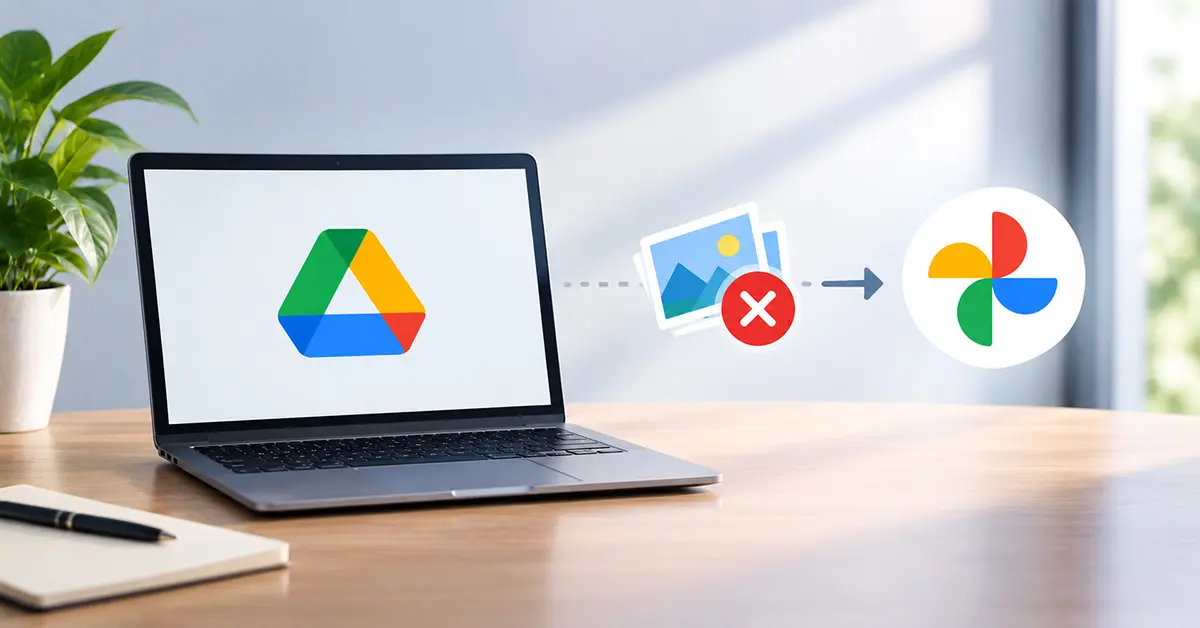
Google Drive for Desktop ended support for backing up photos and videos to Google Photos on August 10, 2026. The desktop app no longer automatically backs up computer folders to Google Photos. However, Google Drive for Desktop itself has not been discontinued, and photos and videos previously backed up to Google Photos remain there.
If you previously used Drive for Desktop to back up photos from your computer, you now need to switch to Google Photos’ “Back up Folders” feature or another backup method for new photos and videos.
This article explains why Google ended the feature, what happens to your existing backed-up photos, and what you can do to keep backing up photos from your computer.
Table of Contents
Google Drive for Desktop No Longer Backs Up Photos: What Changed?
Google has removed the ability to use Google Drive for Desktop to back up computer folders directly to Google Photos. On June 15, 2026, Google stopped allowing users to configure new folders for Google Photos backup through Drive for Desktop. Existing folders continued to be backed up during the transition. On August 10, 2026, Google ended support for Google Photos backups in Drive for Desktop.
This change does not discontinue Google Photos or Drive for Desktop. It only removes Google Photos backup from Drive for Desktop.
Google’s New Approach to Photo Backup
Google said the change is intended to simplify the experience and reduce confusion caused by the overlap between Google Drive and Google Photos. Google explained that users could previously see photos and videos in both services, which could make it difficult to understand how their content was being stored and managed.
With this change, Google is giving the two services clearer, separate roles. Google Drive remains focused on storing and managing files, while Google Photos is the dedicated service for backing up and managing photos and videos. Users who previously used Drive for Desktop to back up photos to Google Photos can now use Google Photos’ “Back up folders” feature instead.
Are Existing Google Photos Backups Safe?
Google has confirmed that any photos and videos previously backed up using Drive for Desktop will remain in Google Photos. Ending this feature only stops future uploads through that method; it does not automatically delete your existing library in Google Photos. If you wish to remove photos that were previously backed up, you’ll need to do that separately within Google Photos. If you have years’ worth of photos already stored in Google Photos, there is no need to download or move them just because of this change.
How to Continue Google Photos Backup From Your Computer
Google now provides a way to back up selected computer folders through Google Photos.
1. Open Google Photos
On your computer, go to Google Photos and sign in to the Google Account you use for your photo library.
2. Choose “Back up folders”
Select Create → Add photos → Back up folders and select the folders containing the photos or videos you want to back up.
Note: Google says the “Back up folders” feature requires a Chromium-based browser, such as Google Chrome or Microsoft Edge.
3. Allow Access
Keep the Google Photos tab open in your browser or have the Photos web app running so the backup process can continue in the background. If you close the tab, photos and videos in the selected folders won’t back up automatically.
What Should Users Do Now?
If you used Google Drive for Desktop to back up your photos, there is no need to panic. Follow these steps:
- Check that your existing photos are still visible in Google Photos.
- Find the folders on your computer that contain your photos and videos.
- Set up “Back up folders” in Google Photos.
- Check your available Google Account storage.
- Check that newly added photos appear in Google Photos after the backup begins.
You can continue using Google Drive for Desktop for Drive-related tasks; you only need to replace its old Google Photos backup workflow.

Suman has a background in Journalism and Mass Communication and works across content writing, editing, storytelling, and digital media. At Oratraex, she focuses on AI, guides, tools, and related digital topics, with an emphasis on creating content that is clear, practical, and easy to understand.