If you’ve ever shared a link to a Google Doc, spreadsheet, or folder without checking who can access it, you may be giving others more access than intended. Google Drive sharing options are built for quick collaboration, but the wrong permissions can make sensitive files more accessible than you realize.
If you’re wondering how to fix Google Drive sharing settings, start by setting file access to Restricted, giving users only the permissions they need, preventing editors from changing sharing permissions, disabling downloads for sensitive files, and removing outdated access.
This guide explains how Google Drive sharing and permission settings work, which options you should review, and how to secure your files with a few simple changes.
Why Do Google Drive Sharing Settings Matter?
Google Drive is designed for easy collaboration, but poorly configured Google Drive security settings can sometimes lead to unintentional oversharing. With just one click on “Anyone with the link,” a private file can become accessible to anyone on the internet without requiring a sign in. Misconfigured access settings pose a significant security risk, not only in Google Drive but across various platforms. According to the 2026 Verizon Data Breach Investigations Report (DBIR), the human element contributed to approximately 62% of data breaches. Adjusting your sharing settings in Google Drive isn’t just about being overly cautious; it’s a crucial aspect of digital hygiene, much like locking your front door. Google regularly updates its sharing features across Google Drive and Google Workspace, so reviewing your sharing settings periodically helps ensure older files remain protected.
How to Check and Fix Google Drive Sharing Settings
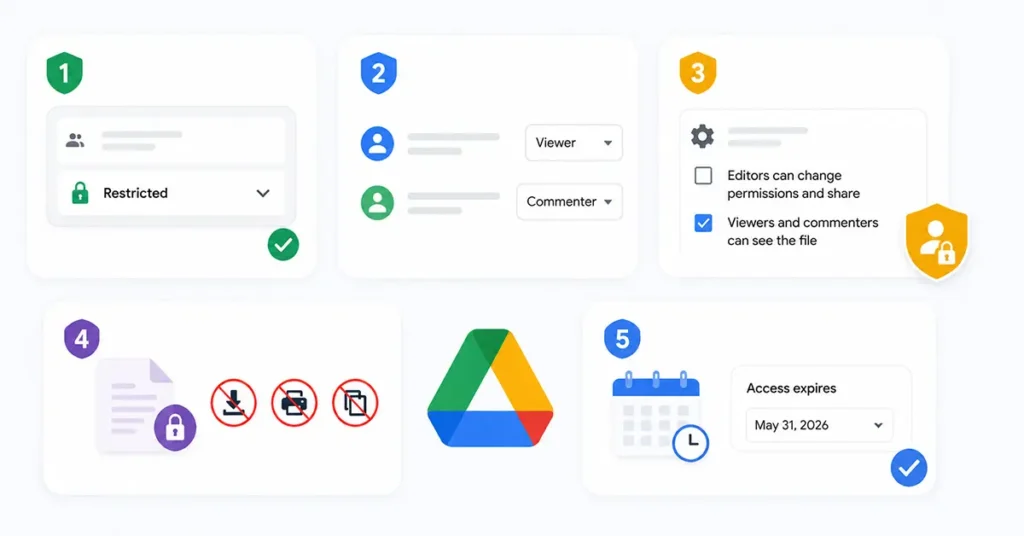
Now that you understand why these settings matter, here are the five sharing settings you should review today.
1. Set Your Default Access to Restricted
The most important setting to consider is who can access a file by default. When a file is set to “Anyone with the link,” it is open to anyone with that URL, and no login is required. Instead, you should configure access to Restricted, allowing only the individuals you have specifically invited by name or email to access it. You can review and modify this setting under the Share button for any file or folder.
How to Set Default Access to Restricted:
- Open Google Drive and locate the file or folder you want to share.
- Right-click the file and select Share.
- Under General access, click the drop-down menu.
- Change “Anyone with the link” to “Restricted”.
- Enter the email addresses of the people who need access.
- Click Done to save the changes.
2. Downgrade Editor Access to Viewer or Commenter
Google Drive offers three roles: Viewer, Commenter, and Editor. Editor access lets someone change the document and adjust who else can see it, which is more power than most recipients need. If you’re sending something for review or reference, Viewer or Commenter permissions cover nearly every real-world use case. Decide the right access level before you share, since changing it mid-task can interrupt whoever’s working in the file.
How to Change Editor Access to Viewer or Commenter:
- Open the file and click Share.
- Find the person whose permission you want to change.
- Click the permission drop-down next to their name.
- Select Viewer or Commenter instead of Editor.
- Click Done to apply the new permission.
3. Stop Editors From Changing Permissions
Even when someone has Editor access, they can still invite new people to a document unless this option is disabled. To prevent Editors from changing permissions, go to the sharing settings menu and uncheck the option that allows them to do so. This keeps all sharing decisions under the file owner’s control. Additionally, it’s important to double-check folder-level permissions since a file usually inherits access from its parent folder. A locked-down file placed inside a folder with open access is only as private as the folder itself.
How to Change Editor Access to Viewer or Commenter:
- Open the file and click Share.
- Click the Settings (gear) icon in the top-right corner of the sharing window.
- Uncheck Editors can change permissions and share.
- Close the settings window.
- Click Done to save your changes.
4. Disable Downloading, Printing, and Copying
By default, anyone with Viewer or Commenter access can save a copy of your file to their own device. If you’re sharing something sensitive, you can disable the options to download, print, and copy, which will gray out those buttons for everyone except the owner. While this won’t prevent someone from taking a screenshot, it does eliminate a straightforward way for others to access your file’s content. This setting is available only for supported Google file types, such as Docs, Sheets, and Slides.
How to Disable Downloading, Printing, and Copying
- Open the file and click Share.
- Click the Settings (gear) icon.
- Under Viewer and commenter permissions, uncheck: Viewers and commenters can see the option to download, print, and copy
- Close the settings window.
- Click Done.
5. Add an Expiration Date to Shared Access
Old, forgotten access is one of the most common reasons sensitive files remain exposed longer than necessary. By setting an expiration date, you can automatically end a person’s access on a specific day, eliminating the need to remember to revoke it manually. Access expiration is available only for eligible Google Workspace editions and supported paid Google plans. It does not apply to files shared with Anyone with the link.
How to Add an Expiration Date to Shared Access:
- Open the file and click Share.
- Add the person you want to share the file with, if they don’t already have access.
- Hover over their name in the sharing list.
- Click the Time (expiration) icon (or select Add expiration, depending on your Google Workspace edition).
- Choose an expiration date.
- Click Save.

Suman has a background in Journalism and Mass Communication and works across content writing, editing, storytelling, and digital media. At Oratraex, she focuses on AI, guides, tools, and related digital topics, with an emphasis on creating content that is clear, practical, and easy to understand.