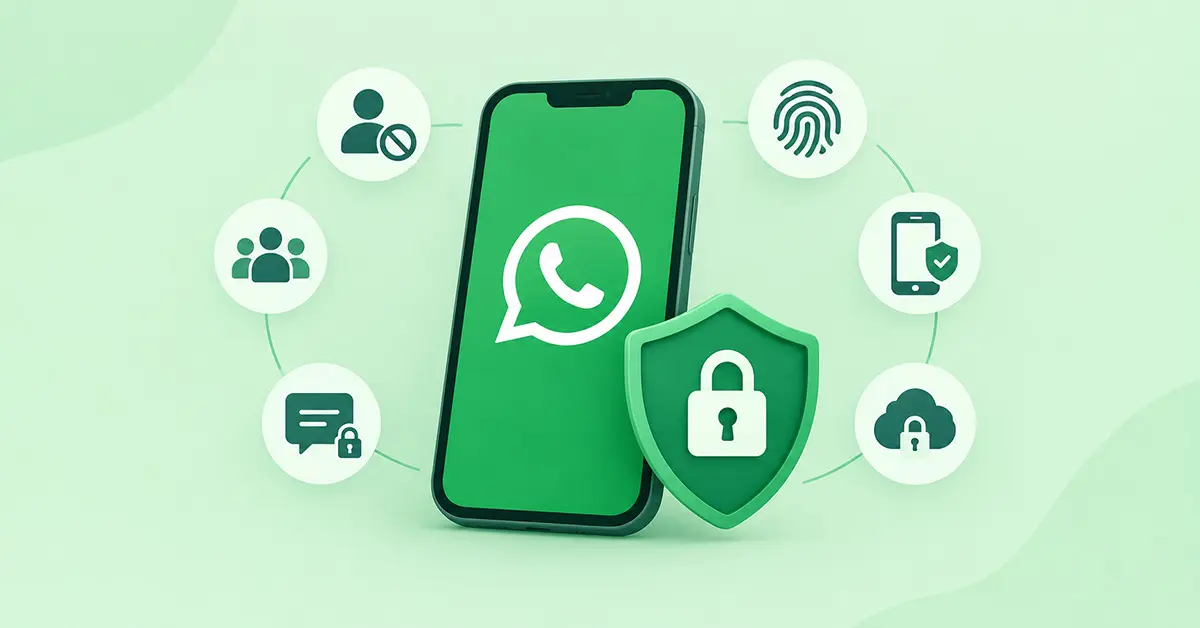
WhatsApp privacy settings let you control personal information that you don’t wish others to see. You can also limit who can contact you or add you to groups. WhatsApp also offers additional security features, such as passkeys, two-step verification, and app lock.
Although end-to-end encryption keeps personal messages and calls private, your account can still be exposed to scams, malicious links, and unauthorized access. Taking time to review your settings can help you keep your chats and personal details more private.
How Do You Improve Your WhatsApp Privacy Settings?
WhatsApp offers several built-in settings to help you protect your personal information and limit unwanted messages. These seven settings can help you to make your account more private and secure.
1. Control Who Can See Your Personal Information
Your profile picture, About section, last-seen time, and status updates can reveal details about your daily activities, which may have sensitive information. You can adjust your settings and choose who gets to view your data. However, these settings don’t let you hide your phone number completely.
To manage these settings, go to Settings → Privacy and check the following options:
- Last Seen and Online: Limit who can see when you were last active and also see when you are online.
- Profile Photo: Choose who can view your profile picture.
- About: Choose who can see your information displayed in the About section.
- Status: Choose who can see your status updates.
- Read Receipts: Turn off read receipts to prevent others from knowing you have read their messages in individual chats. Read receipts remain enabled for group chats.
Depending on your preference, choose options such as My Contacts, My Contacts Except…, or Nobody where they are available.
2. Enable Two-Step Verification and Passkeys
Two-step verification adds an extra layer of protection when you register your phone number on WhatsApp. WhatsApp has introduced stronger password options, including letters, numbers, and special characters. Be careful to never share your registration code, password, or verification PIN, even with someone claiming to be WhatsApp support.
To set up Two-Step Verification and Passkeys:
Go to Settings → Account → Two-step verification and follow the instructions to set up two-step verification and add a recovery email address if prompted. Add a strong password or PIN based on the options available. You can also set up a passkey separately under Settings → Account → Passkeys. A passkey lets you verify your identity using your fingerprint, face recognition, or your device’s screen lock.
3. Check Your Linked Devices
WhatsApp has a useful feature that links computers and other devices to your account. However, if someone else links their device to your account, they can access your chats.
On your WhatsApp, open Settings → Linked Devices and review the list and log out of any device you don’t recognize or no longer use. Be careful when scanning unfamiliar QR codes. A scammer may try to trick you into linking your account to their device.
4. Change Your WhatsApp Group Settings
Joining unknown groups can expose your number to strangers and fill your chats with unwanted promotional messages or scam links.
Open Settings → Privacy → Groups and choose who can add you to groups. You can also exclude specific people from adding you in the settings, if the options are available. Even with these settings enabled, people may still send you group invitation links, so review them carefully before joining.
If an unfamiliar group appears, don’t click on suspicious links and avoid sharing personal information. Leave the group and report it if the messages appear fraudulent. Reviewing these settings can help you avoid unwanted additions to groups, especially if you frequently get added to groups.
5. Lock WhatsApp and Sensitive Chats
Leaving your phone unlocked with others can make your chats accessible. App lock adds another layer of protection by requiring biometric authentication or other methods to open WhatsApp.
To set up an app lock, open WhatsApp’s privacy settings and look for App Lock, if the option is available in your phone. You can also use Chat Lock to protect selected conversations separately.
Even though you have secured your WhatsApp with a lock, your phone’s lock screen may reveal private information, even when the phone is locked. Reviewing your notification settings can help you conceal your private chats.
6. Protect Your Chat Backups
Your WhatsApp chats are end-to-end encrypted, but that doesn’t necessarily mean every backup is protected. You should check whether end-to-end encrypted backups are enabled.
Go to Settings → Chats → Chat Backup → End-to-end Encrypted Backup and follow the instructions to enable it.
WhatsApp may offer different ways to secure a backup, including a passkey, password, or encryption key. Save your backup details carefully because losing them could prevent you from restoring your backup.
7. Silence Unknown Callers and Review Security Notifications
Unexpected calls from unknown numbers usually trick people into sharing personal information or sending money. To control the calls, open Settings → Privacy → Calls and check the option to silence unknown callers. The settings location may vary by device. Silenced calls will not ring, but they may still appear in your Calls list.
You may sometimes see the notification that says “Your security code is changed in WhatsApp.” This can happen when a contact reinstalls WhatsApp, changes phones, or adds or removes a linked device. If the change seems unexpected, contact the person through another trusted method. You can manage security notifications in the security notification settings on supported devices. The option may be located differently across devices. Check your App settings to find the option.
Protect Your Privacy Beyond These Settings
WhatsApp continues to add security features that help users to manage their conversations. Follow its official announcements to learn about new options. For conversations you don’t wish to keep permanently, use disappearing messages. You can also use View Once for photos and videos intended to be viewed once. Be aware of content you share, and remember to adjust the features accordingly.

Suman has a background in Journalism and Mass Communication and works across content writing, editing, storytelling, and digital media. At Oratraex, she focuses on AI, guides, tools, and related digital topics, with an emphasis on creating content that is clear, practical, and easy to understand.