A slow Windows PC doesn’t always mean you need new hardware. In many cases, unnecessary startup apps, background activity, visual effects, limited free storage, and power settings can make your computer feel less responsive. Adjusting a few Windows performance settings can help speed up a slow PC by reducing its unnecessary system load.
Key Takeaways:
- Disable startup apps you do not need.
- Stop unnecessary apps from running in the background.
- Use Best performance when you need more power.
- Reduce visual effects on older PCs.
- Free up space on your Windows drive.
- Install Windows and driver updates regularly.
Table of Contents
Windows Performance Settings to Improve PC Performance
Windows performance depends on several settings working together rather than a setting alone. By adjusting a few key system behaviors, you can reduce unnecessary load and make your PC feel more responsive.
Microsoft recommends several of these measures as part of its guidance for improving PC performance, including managing startup apps, background activity, visual effects, power mode, and available storage.
The following settings focus on common sources of unnecessary system activity, starting with startup apps and moving through background activity, power mode, visual effects, storage, and updates.
1. Turn Off Unnecessary Startup Apps
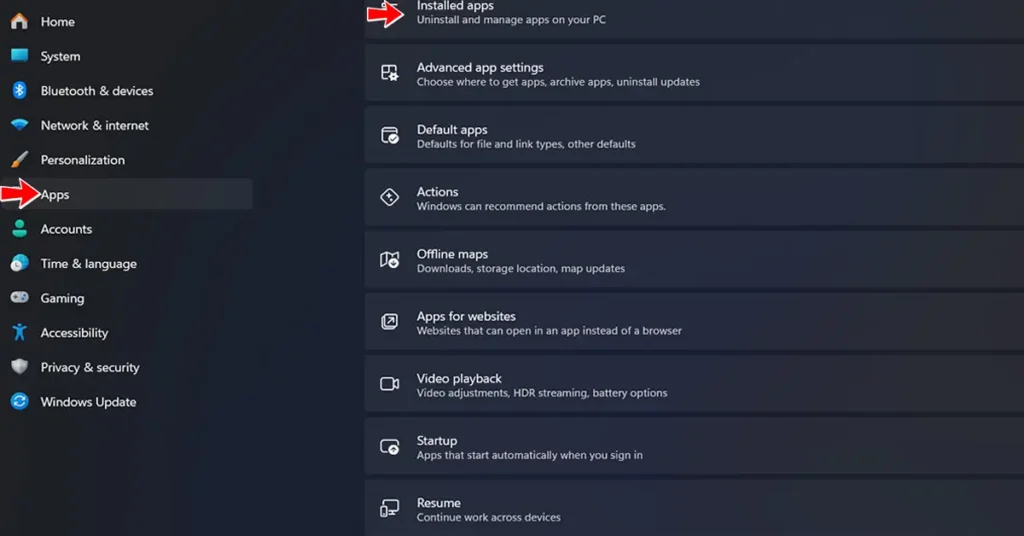
Programs that automatically start when you sign in can slow down startup and continue using system resources after Windows loads. Microsoft recommends disabling startup apps that you don’t need.
Go to Settings > Apps > Startup, and turn off apps you rarely need. You can also open Task Manager > Startup apps to see which programs have the biggest impact on startup.
Avoid disabling software that Windows or your hardware needs, such as security software, essential functions, and hardware features.
2. Limit Apps Running in the Background
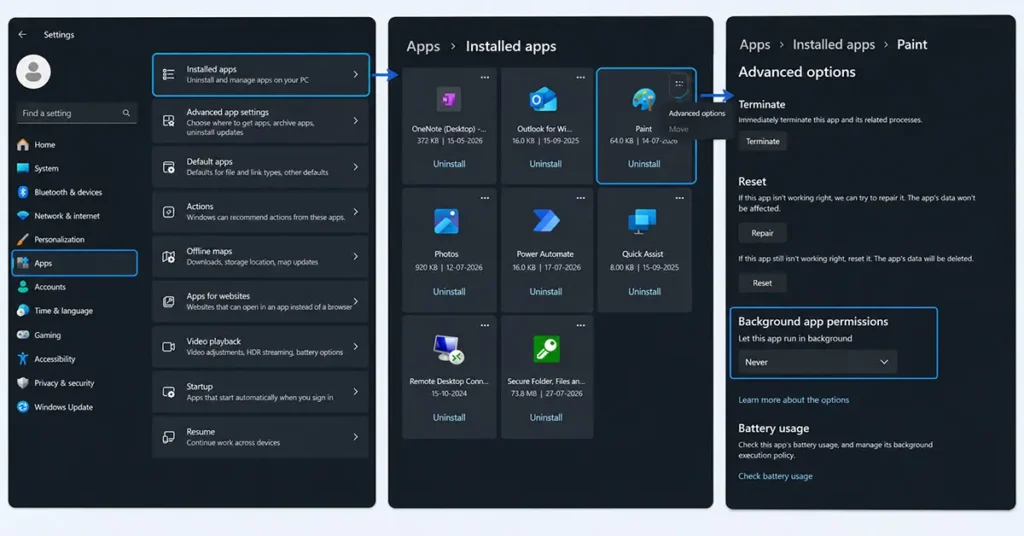
Some applications continue working even when you are not actively using them. This can support notifications and syncing, but it can also increase resource and battery usage.
For supported apps, open Settings > Apps > Installed apps, select the app’s More options (…) > Advanced options, and look for Background app permissions. Under Let this app run in the background, select Never. This stops the app from running in the background when you are not using it. However you may also stop receiving notifications and updates from the app while it’s not open.
If you don’t see this option, you can also check Settings > System > Power & battery > Battery usage, select the app, and look for Manage background activity. Windows doesn’t offer the same background-permission control for many traditional desktop apps. In that case, you can use this method instead.
3. Choose Best Performance Power Mode
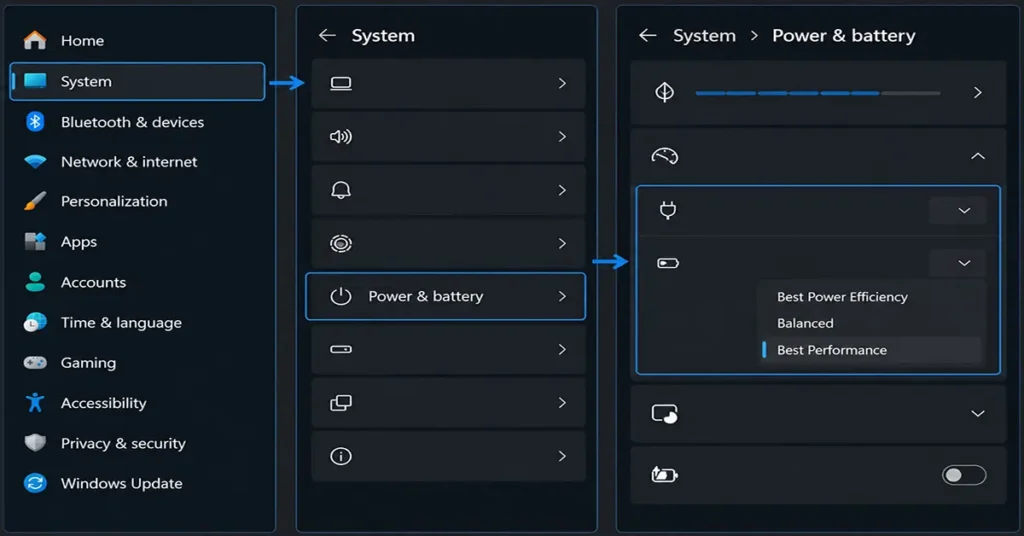
Windows lets you choose between power efficiency, balanced operation, and maximum performance. Best performance prioritizes performance over battery life.
Open Settings > System > Power & battery > Power mode, and select Best performance when you are handling demanding tasks. On laptops, this mode can use more power, drain the battery faster, and make the PC run hotter with more fan noise.
4. Reduce Visual Effects
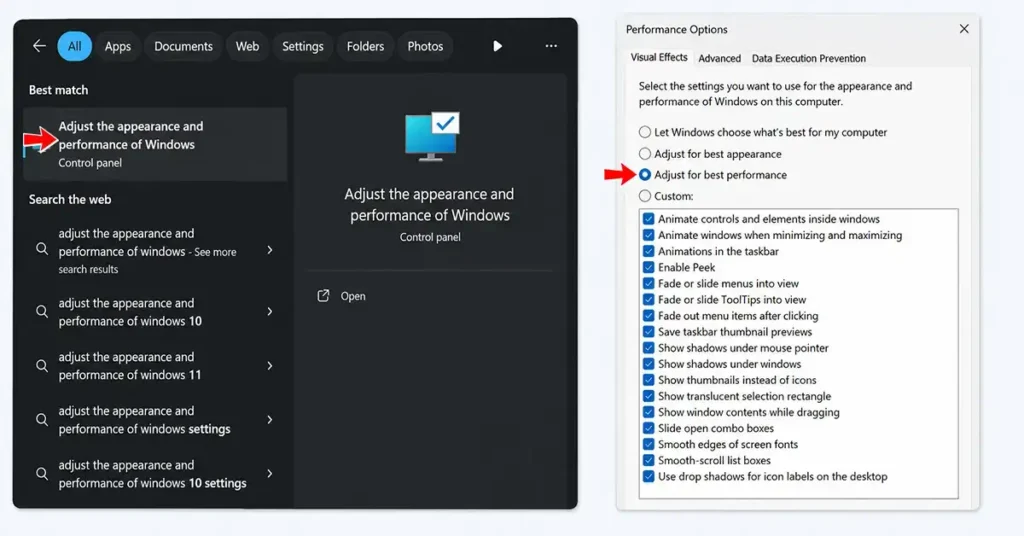
Windows uses animations, shadows, and other visual effects to make the interface look and feel smoother. On older or less powerful systems, reducing these effects can improve responsiveness. Microsoft recommends the Adjust for best performance option as one possible performance tweak.
To turn down these effects:
Press Windows + S > Search for Adjust the appearance and performance of Windows > Visual Effects > Adjust for best performance > Apply > OK
Windows will reduce or turn off many visual effects such as animations and other graphical effects. Your PC may look a little simpler, but menus, windows, and other interface elements can feel more responsive.
You can also choose Custom instead of Adjust for best performance if you want to turn off only certain effects while keeping others.
5. Free Up Storage Space
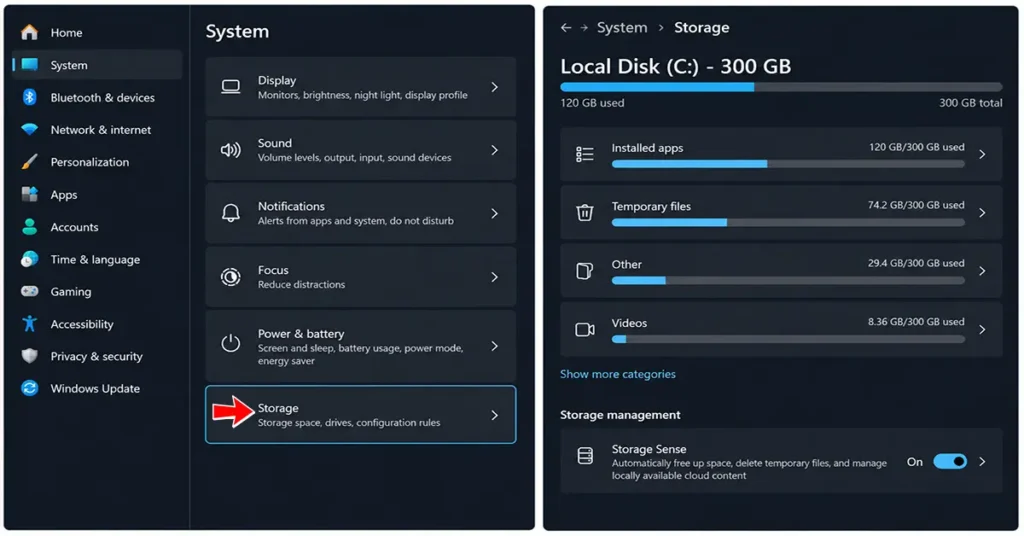
Running very low storage can cause problems for Windows and may make it harder to install updates. Keeping enough free space can help Windows run normally. Microsoft recommends using Storage Sense or Cleanup recommendations to remove files you no longer need.
Go to Settings > System > Storage > Temporary Files and Cleanup recommendations to find files and apps you no longer need.
You can also use Windows’ automatic cleanup feature:
Settings > System >Storage >Storage Sense >On
Storage Sense can automatically remove certain unnecessary files based on its settings, helping you free up storage without having to clean everything manually.
Tip: Before deleting anything, check the files listed under Temporary files. Avoid selecting files you still need.
6. Keep Windows and Drivers Updated
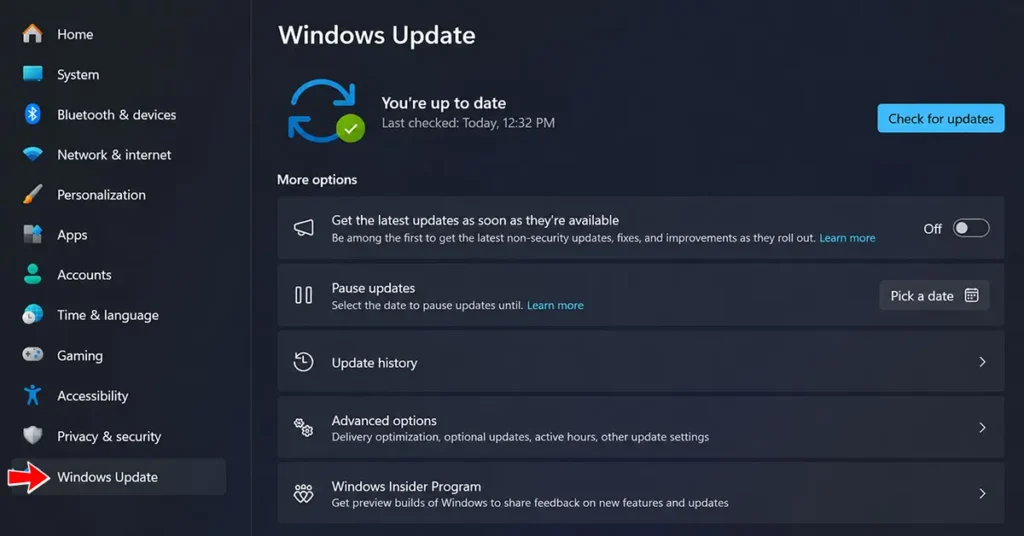
Windows updates can include fixes, performance improvements, and other changes. Driver updates can also help Windows work properly with your hardware and resolve compatibility or performance-related issues.
Open Settings > Windows Update regularly and install available updates. For hardware drivers, Windows Update is the recommended first place to check for driver updates. If you can’t find the driver through Windows Update, check the hardware manufacturer’s official support page.
What Should You Change First?
You don’t need to change every setting at once. Start with startup apps, background activity, and storage because these are common sources of unnecessary system activity. If your PC still feels sluggish, try reducing visual effects and switching to Best Performance.
Also remember that settings cannot overcome outdated hardware indefinitely. If your PC remains slow after these changes, the underlying hardware may be limiting performance.
Conclusion
The right Windows performance settings can make a slow PC feel more responsive without immediately upgrading your hardware. Disable unnecessary startup programs, limit background activity, free up storage, reduce visual effects, and use Best performance when your workload demands it.
Make one change at a time and observe the difference. This approach lets you improve Windows performance without turning off features you actually need.
Frequently Asked Questions
How can I speed up a slow Windows PC?
You can slow Windows PC feel faster by disabling unnecessary startup apps, limiting background activity, reducing visual effects, freeing up storage, using Best performance when needed, and keeping Windows updated.
Does disabling startup apps make Windows faster?
Disabling unnecessary startup apps can reduce the number of programs that launch when you sign in, which can improve startup time and reduce background resource use.
Will Storage Sense delete my important files?
Storage Sense removes certain files based on your settings. Review its cleanup options before enabling automatic cleanup, especially if you keep important files in folders such as Downloads.
Can updating Windows improve PC performance?
Windows updates can include fixes and improvements that may resolve system or compatibility issues. Keeping Windows updated also helps ensure you receive important security and reliability improvements.
Can restarting a Windows PC improve performance?
Yes. Restarting Windows closes running processes and clears temporary processes and system states, making it a simple troubleshooting step when a PC becomes unusually slow or unresponsive.

Suman has a background in Journalism and Mass Communication and works across content writing, editing, storytelling, and digital media. At Oratraex, she focuses on AI, guides, tools, and related digital topics, with an emphasis on creating content that is clear, practical, and easy to understand.